Franklin & Colleen
The house wine cellar
A private app for the two of you. Keep track of what's in the house, where each bottle lives, and when to drink it.
You stay signed in on this device until you sign out.
What Finger Cellar does
Everything in one place, from the label photo to the last glass.
Photograph a label
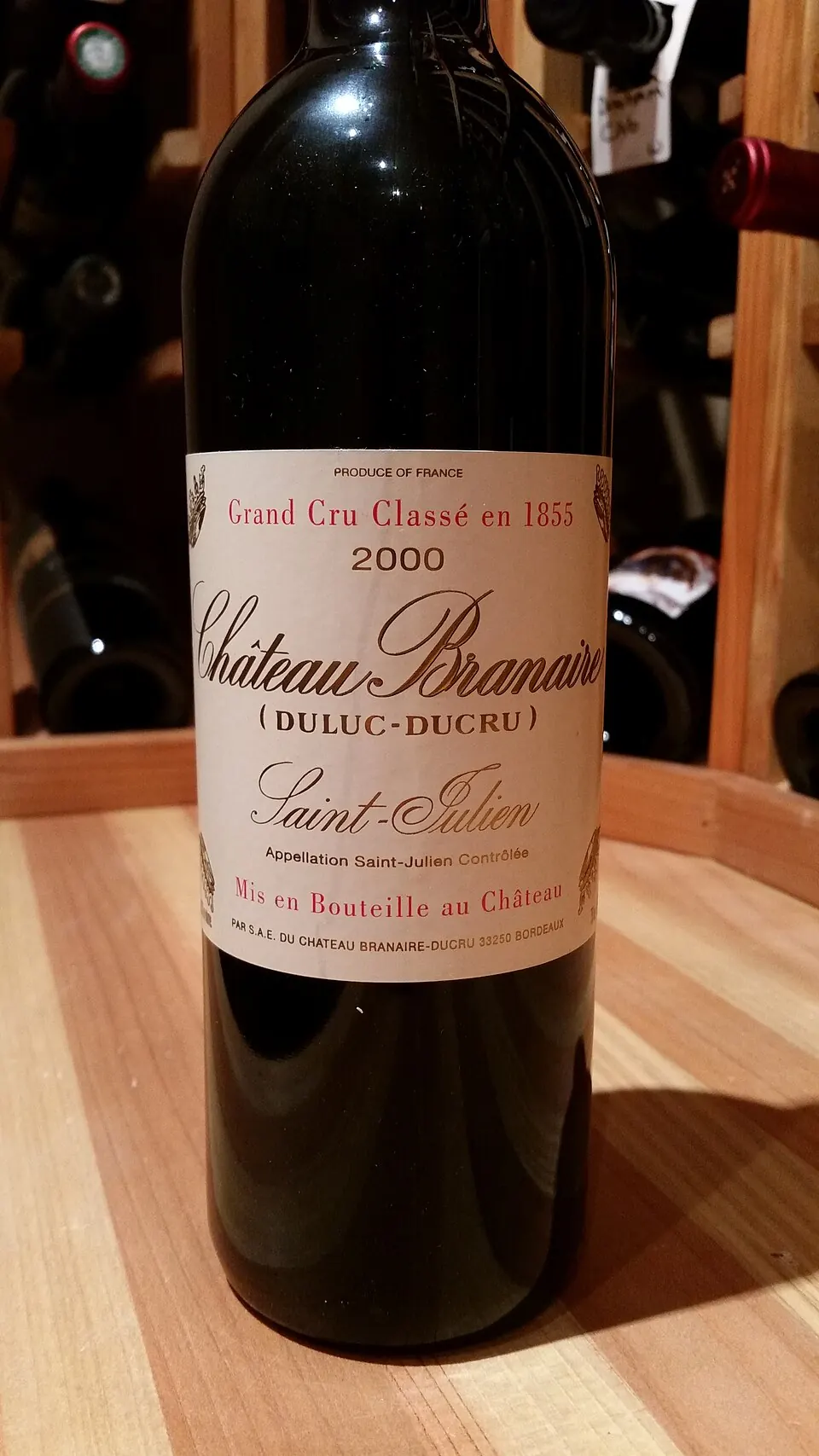
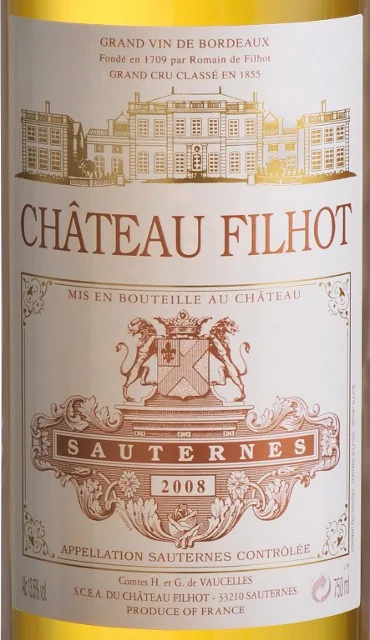
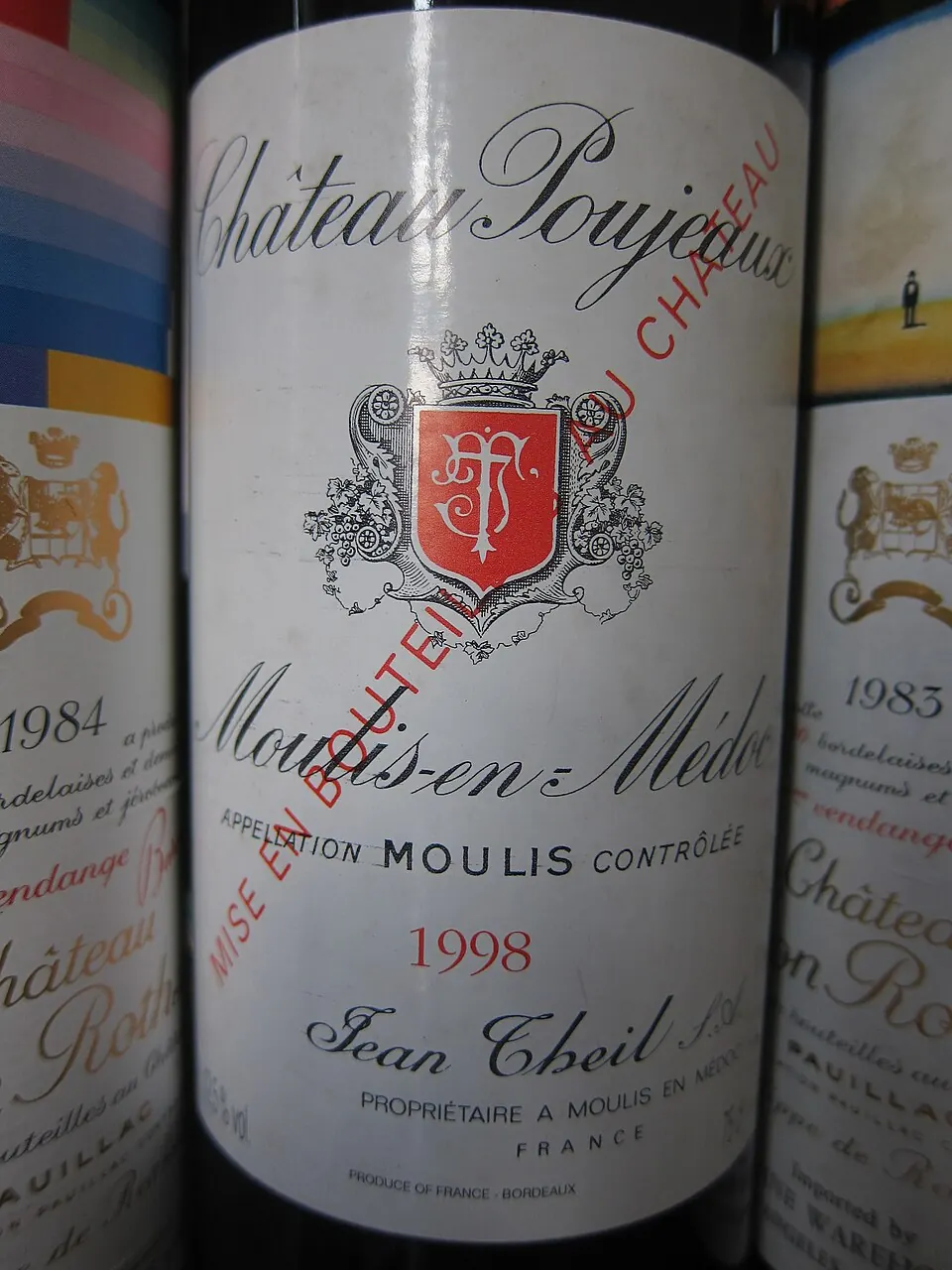
On Add, snap the front label — or pick a photo you already have. The app reads it and checks whether that wine is already in the cellar. If it is, you just add another bottle. If it isn't, it starts a new wine. Either way you get a confirm screen first: how many, size, location, shelf or bin, price paid, and value. For a new wine you can also edit the drink-from and drink-by months. Nothing is saved until you tap Save.
Say the wine
The mic on the Add screen lets you say something like “add two bottles of Frank Family Chardonnay 2024 to the kitchen fridge.” You can also type what you would say. It opens the same confirm screen, with your words shown so you can check them.
Type a name, even misspelled
On Search, type a name however you'd say it — misspellings are fine. It looks in your cellar first, then a catalog of about 190,000 wines.
Browse the collection
Filter and group by producer, region, grape, location, bin, color, vintage, and more. Open a wine to see its details, change the drink window, or replace the label photo. Mark a bottle as just opened, or as finished — with an optional score and a private note that stays in tasting history.
Where bottles live
Add a location as you save a bottle, or manage them on the Locations page — racks, fridges, closets, whatever you use.
Drink-from and drink-by
Each wine can have a drink-from and drink-by month and year. You can edit them any time on the wine. Home and Ready to drink show what's in its window right now.
Past peak / drink soon
A dedicated view lists bottles already past their drink-by, or within about three months of it — so you can see what needs attention.
A month's notice
Turn on drink-by alerts in More → Settings and you'll get a notification about a month before a bottle's drink-by. On iPhone this only works after you add Finger Cellar to your Home Screen, open it from that icon, and allow notifications.
Stats and value
Stats shows bottle counts and the current value of the cellar, based on the prices and values you enter.
Put it on your iPhone
Use Safari so you can add Finger Cellar to your Home Screen. That's also what you need for drink-by notifications.
- 1Open this site in Safari.
- 2Tap the Share button.
- 3Tap Add to Home Screen.
- 4Open Finger Cellar from the new icon.
Sign in
First visit? Pick a password here. Use it the next time you sign in. You'll stay signed in until you sign out.